The bot works in the demo. Then real users arrive. Someone waits 15 seconds and sees nothing move. Someone else gets a confident wrong answer. A third gets “Sorry, I did not get that” three times, then leaves.
None of those problems live in the chat bubble. The bubble is the easy part of a chatbot UI. The interface is defined by every state a conversation can be in, and half of those states are failures or detours.
This guide gives you four things. The full list of states and what each needs on screen. Real examples, checked live and dated. Accessibility rules you build into the component library once. And an honest check that chat is the right conversational interface for your task at all.
Jump to the state inventory, accessibility checklist, examples or testing.
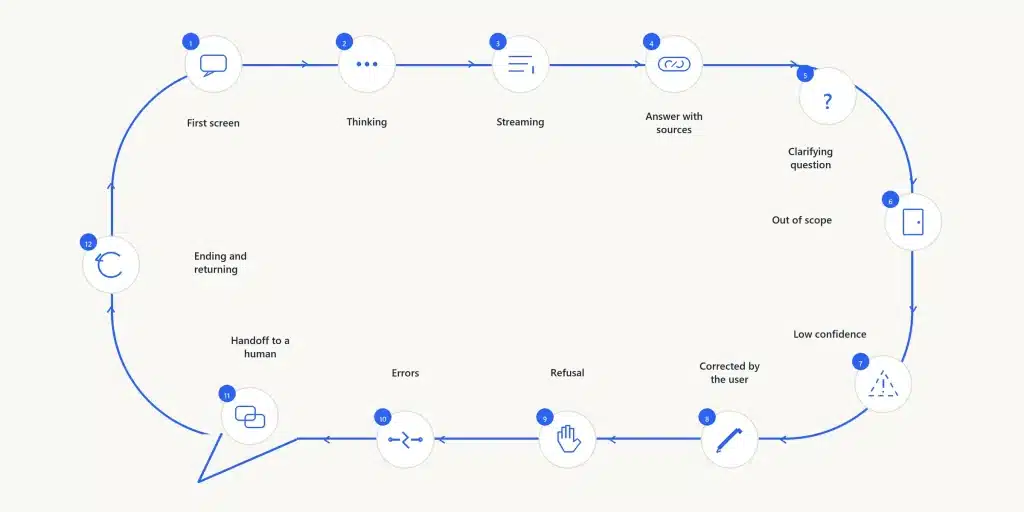
Chatbot UI in short. Chatbot UI is everything a user sees and touches in a chat interface, from the launcher and message bubbles to the screens shown while the bot thinks, fails or hands off. A complete chatbot UI designs 12 states.
- First screen
- Thinking
- Streaming
- Answer with sources
- Clarifying question
- Out of scope
- Low confidence
- Corrected by the user
- Refusal
- Errors
- Handoff to a human
- Ending and returning
What chatbot UI design covers
Chatbot UI design, the work of shaping a chatbot user interface, has three layers.
- The frame. The window, the message list and the input. It is what screenshots of chat products usually show.
- The states. Everything that can happen in a conversation, including the slow, wrong and blocked moments.
- The words. The copy, the tone and the plain statement that the user is talking to software.
Guides spend whole sections on UI versus UX. Two sentences cover it. Chatbot UI is what the user sees and touches on screen, from bubbles to buttons to error banners. Chatbot UX is how well the whole conversation gets the user to their goal, which depends on the UI, the model and the content behind it.
The frame gets the most attention in published guides. Of the eight chatbot UI guides we read for this post on 15 October 2026, none designed every failure state. That is where this guide spends its words. If AI is also changing how your team designs, our guide to AI for UI/UX design covers the tools on that side.
Some people searching for chatbot-ui want the open-source project of that name, mckaywrigley/chatbot-ui on GitHub, which describes itself as “AI chat for any model.” This guide is about designing the interface.
Check that chat is the right interface
Chat is the right interface when the user has an open question whose answer is spread across many documents. Fixed fields, comparisons, repeated actions and high-risk cases are better served by a form, a table, a button or a person. The most expensive chatbot design mistake happens before the first mockup. A team decides the product needs chat, and every later decision inherits that choice.
Nielsen Norman Group warns about this directly. In AI Chat Is Not (Always) the Answer (1 March 2024), Sarah Gibbons and Kate Moran file one product example under the heading “AI for the Sake of AI.” They tell teams to check the user need first, and to consider AI that works without a chat window, such as personalization, predictive analytics, automating repetitive tasks and automating parts of customer support.
A public-sector team made the same call in practice. Ruth Drake, a user researcher at HMRC, wrote in 6 tips for building a genuinely helpful chatbot (GOV.UK Design Notes, 14 June 2022) that HMRC chose “not to use a digital assistant on our HMRC extra support pages,” and sends potentially vulnerable users “directly to a webchat adviser.”
Use this table before you open a design tool.
| The task | The better interface | Why |
| Fixed fields, such as a booking or an address change | A form | The user sees every field at once, knows how much is left, and can fix any answer directly |
| Comparing options | A table or filters | Comparison needs items side by side, and a chat answer shows them one paragraph at a time |
| A known, repeated action | A button | One click beats typing the same request every time |
| An open question across many documents | Chat | The user cannot know which page holds the answer, and the answer may combine several |
| An emotional or high-risk case | A human | A wrong answer costs too much, and the person needs judgment and care that a model cannot give |
The form row is the one teams skip. A booking needs a date, a time, a party size and a name. Chat asks for them one message at a time, hides how many questions remain, and makes changes awkward. When users already know what they are looking for, search usually serves them faster than a conversation.
A simple rule helps. If the task has a fixed set of fields, design a form. If users know what they want, design search. Build chat for the fourth row of the table.
Where the chatbot lives, a widget, a full page or a product panel
A chatbot lives in one of three places, and each one changes the design. Of the guides we read, none explained what each placement demands of the design.
| Placement | Typical use | Design constraints | Example |
| Website support widget | Answering visitor and customer questions on a marketing or help site | Small space, interrupts browsing, must say when a human is available | Intercom Fin on intercom.com, Zendesk’s AI agent on zendesk.com |
| Full-page assistant | The chat is the product | Room for history, sources and long answers, and an empty first screen to fill | ChatGPT, Claude, Perplexity, Duck.ai |
| In-product side panel (copilot) | An in-product assistant next to the user’s work in a SaaS app | Must read the context of the current screen and must not cover the work | A copilot panel beside a dashboard or editor |
Website support widget. The visitor arrived to do something else, so keep answers short, make the human option visible early, and let the widget close without losing the conversation. Intercom’s Fin widget, opened on 15 October 2026, said “The team can also help” in its header before the first message.
Full-page assistant. The AI chatbot user interface is the whole product. History, source panels and long answers all fit. The risk is the empty state, so conversation starters and a scope statement matter most here.
In-product side panel. Good UI for chatbot panels starts from where they sit, next to the user’s real work. The panel should know which record, report or document is on screen, so the user does not have to explain it. It should show changes in the main view, where the user can see them, and keep the panel for the conversation. Luke Wroblewski described the cost of ignoring this in An Alternative Chat UI Layout, where agent reasoning and tool calls pile up in a narrow side panel and become hard to follow. Designing that split between panel and product is core SaaS application design work, and the panel has to respect the same data views covered in our SaaS dashboard design examples.
The frame, the components every chat interface needs
Every chat interface needs eight components, from the launcher to conversation history. Competitors cover the frame well, so this section stays short.
| Component | Its job | A common mistake |
| Launcher | Opens the chat from anywhere on the page or app | An unlabeled icon that users mistake for something else |
| Header with bot identity | Says who the user is talking to and that it is AI | A human name and photo on a bot |
| Message list | Holds the conversation in order | Jumping to the bottom while the user reads higher up |
| Message bubbles | Separate user messages from bot messages | Telling them apart by color alone |
| Composer (input field) | Takes the user’s message and attachments | An empty placeholder that gives no hint of scope |
| Prompt controls | Attach, use voice, pick a model or mode | Icons with no labels |
| Quick-reply chips | Offer likely next answers as one tap | Chips too small to tap, or so many that they bury the input |
| Conversation history | Lets users return to and delete past chats | No delete control, or no way to tell chats apart |
The prompt controls deserve one extra rule. In Prompt Controls in GenAI Chatbots (2 August 2024), Feifei Liu of Nielsen Norman Group argues that labels matter even more on genAI icons than elsewhere, because users “have not yet formed mental models” of how these bots work. Duck.ai’s composer shows both approaches side by side. On 15 October 2026 it labeled “Tools” and “Fast” in text, and left the paperclip and microphone as bare icons.
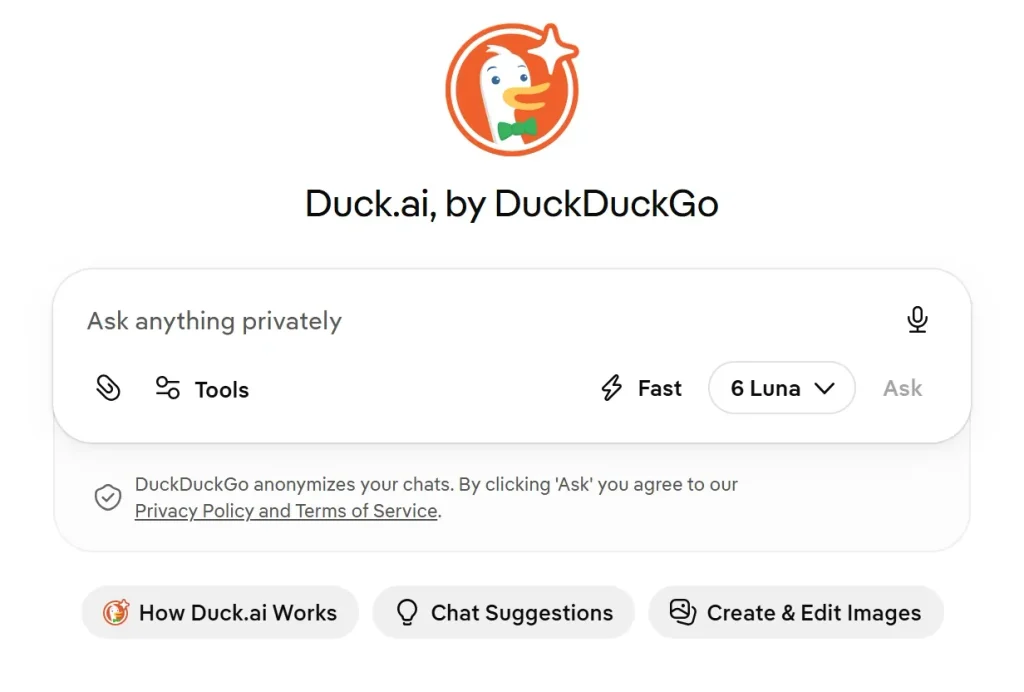
Put a text label next to each control, or at minimum a visible tooltip.
The states a chatbot conversation goes through
A chat interface can change state at every turn, because the model behind it can be slow, wrong, unsure or blocked. A state you skip still happens. The user just sees it badly.
This is also the answer to the most common objection. “Our chatbot tool already gives us a widget.” A tool widget gives you a working happy path. The failure states below, written for your content, your policies and your team’s hours, are still yours to design. Run your widget against this table before calling it done.
| State | What triggers it | What the UI must show | Example copy | Accessibility note |
| First screen | User opens the chat | Bot identity, scope, three to five starters | “I am an AI assistant. I can help with orders, returns and delivery.” | Starters are real buttons in the tab order |
| Thinking | Message sent, no text yet | Indicator within 1 second, status text and cancel for long waits | “Checking your order history” | Status announced once, animation off under reduced motion |
| Streaming | Text is arriving | Stop control, stable scroll position | Button label “Stop” | Set aria-busy while streaming, then announce the finished answer once |
| Answer with sources | Answer uses documents | Source chip beside each claim, full list one click away | “From the returns policy, updated 2 Sept” | Chips have link text that names the source |
| Clarifying question | Request is ambiguous | One question plus quick-reply chips | “Which order do you mean?” | Chips at least 24 by 24 CSS pixels |
| Out of scope | Request is outside the bot’s topics | Plain statement and a route elsewhere | “I cannot help with billing. The billing team can, in Account then Billing.” | Route is a real link |
| Low confidence | Weak or conflicting sources | Hedged copy, “check this” marker, feedback | “I am not certain. Please confirm this in your contract.” | Marker carries text as well as an icon or color |
| Corrected by the user | User edits a message or regenerates | Edit and regenerate controls, a clear marker on the new answer | “Edited” | Controls reachable by Tab, with labels |
| Refusal | Request breaks a rule | Reason and an alternative | “I cannot share another customer’s details. I can help with your own account.” | Refusal is announced like any answer |
| Errors | Network, timeout, rate limit or length limit | Type-specific copy, retry, typed text kept | “Connection lost. Your message is saved. Try again.” | Error announced as a status and written in words |
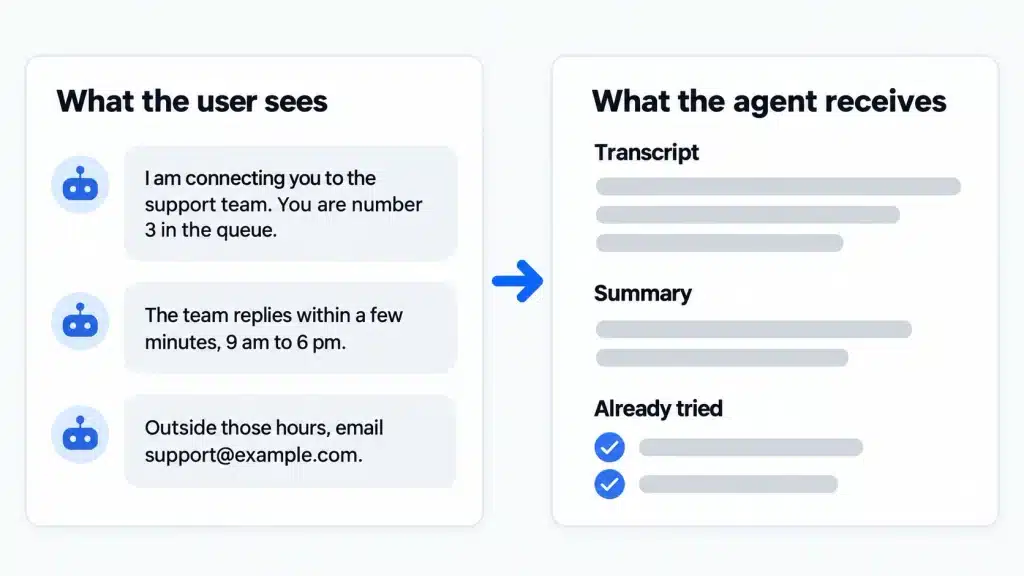
| Handoff to a human | User asks, repeated failure, sensitive topic or vulnerable user | Queue position or wait, hours, email fallback | “You are number 3 in the queue. The team replies within a few minutes.” | Queue updates announced politely |
| Ending and returning | User leaves or comes back | History, resume, memory controls, delete | “Continue where you left off, or start a new chat.” | Delete asks for confirmation that a screen reader announces |
The example copy is ours, written for a fictional support bot. Each state below covers what the user sees, what breaks without it, and one line of copy.
First screen
The first screen says the user is talking to a bot, says what the bot can help with, and offers conversation starters so nobody faces an empty box.
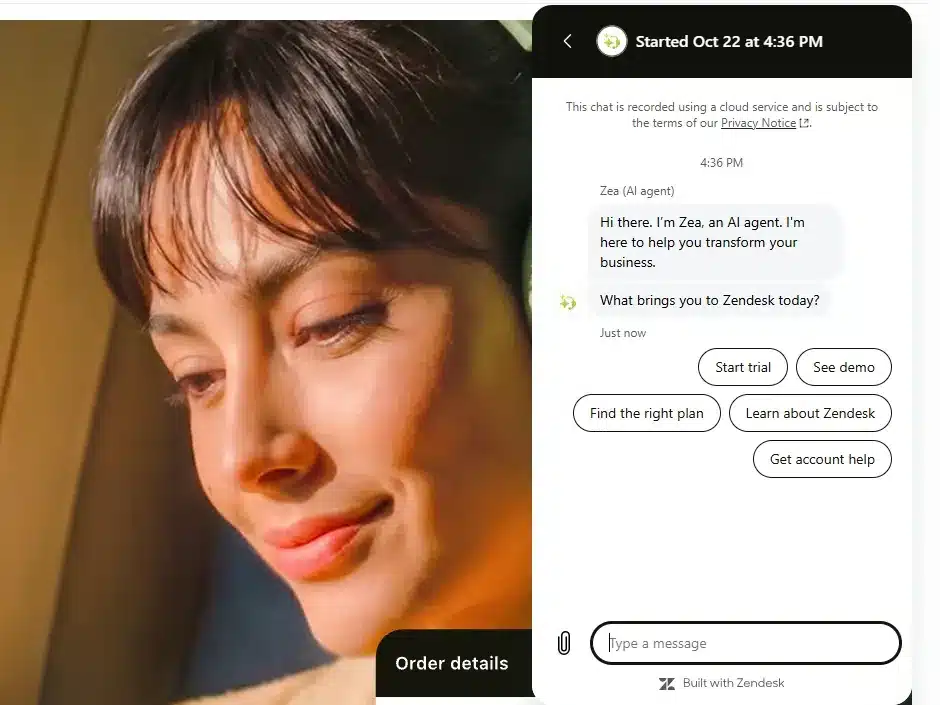
Under the tip “Your chatbot needs to set expectations,” HMRC’s Ruth Drake writes that users should know from the start that they are talking to a computer and which topics it covers (GOV.UK Design Notes). Zendesk’s AI agent did all three on 15 October 2026. The sender label read “Zea (AI agent),” the greeting named it as an AI agent, and five quick-reply chips offered the likely tasks.
Without this state, users ask questions far outside the bot’s range, get poor answers, and stop trusting the whole tool on day one.
Example copy. “I am an AI assistant. I can help with orders, returns and delivery. For anything else, the team can help.”
Thinking
Between sending and the first word there is a gap, and an empty gap looks like a crash. Jakob Nielsen’s limits in Response Times: The 3 Important Limits still set the bar. About 0.1 second feels instant, about 1 second keeps the user’s flow of thought, and 10 seconds “is about the limit for keeping the user’s attention focused on the dialogue.” So show a typing indicator well within the first second, and past 10 seconds show progress and offer cancel. Nielsen recommends percent-done indicators for operations longer than that.
On 15 October 2026, ChatGPT showed a single pulsing dot before the first word. Claude showed a one-line status that described the work, “Drafting a clear explanatory answer in prose.” A status line scales better, because it can change as the wait grows (“Searching 3 documents,” then “Writing the answer”).
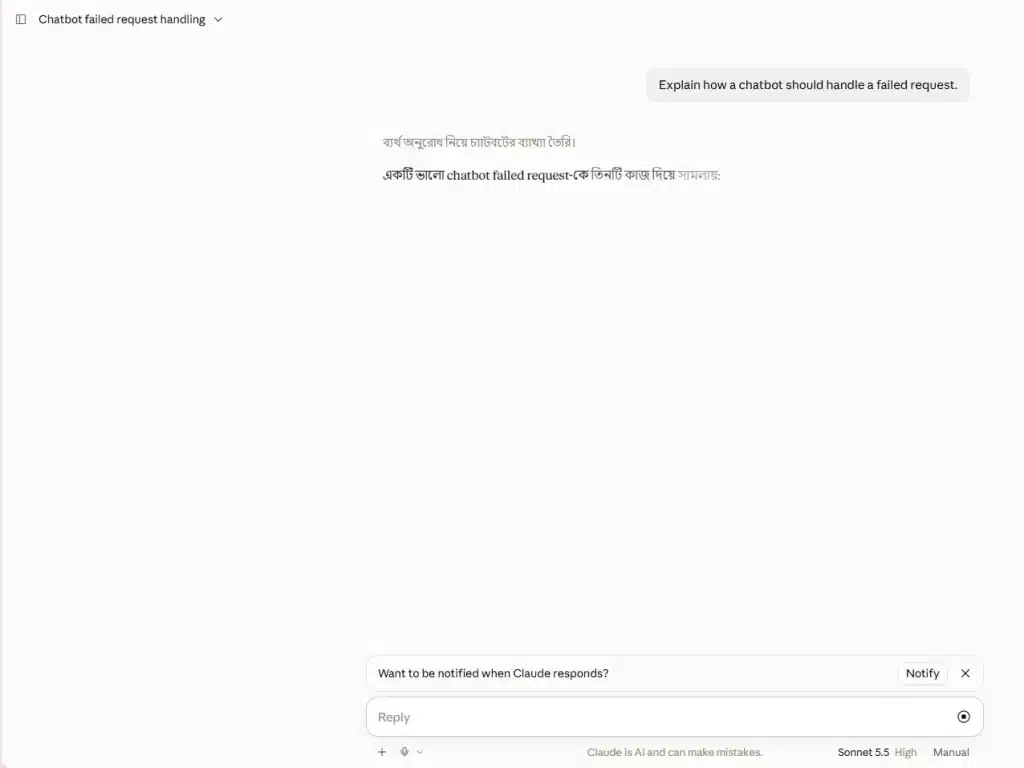
Plan for a stalled stream too, where text stops mid-sentence and the user cannot tell a slow LLM from a dead connection. After a few seconds of silence, say so. “Still working. This is taking longer than usual.”
Streaming
Once text arrives, the user needs a way to stop it and a view that stays where they put it. Without a stop control, a wrong answer runs to the end while the user waits.
Put the stop generating control where the send button was. ChatGPT and Claude both did this on 15 October 2026, with buttons labeled “Stop” and “Stop response.”
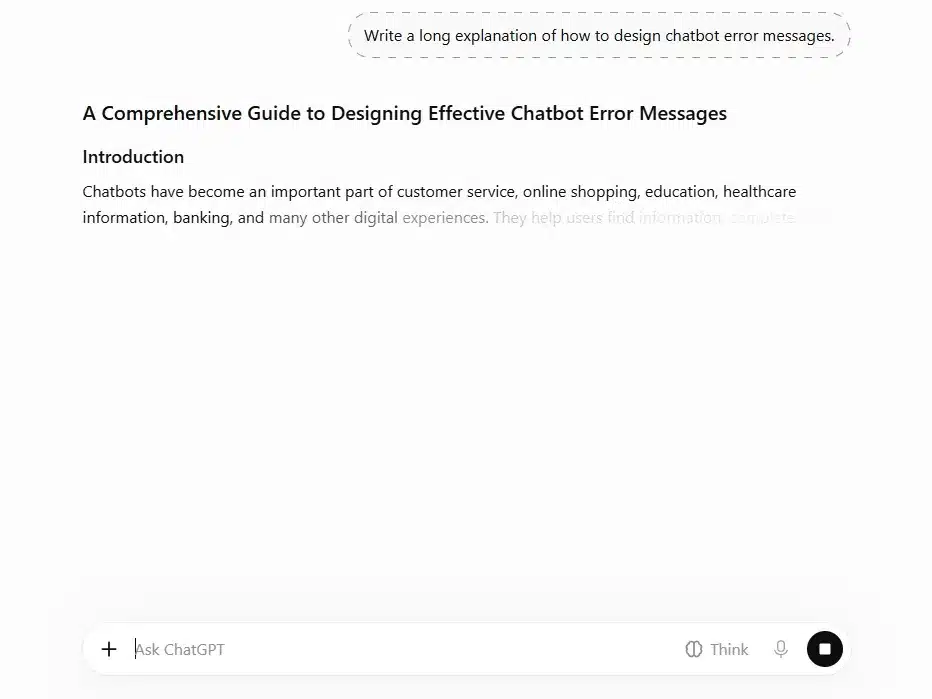
If the user scrolls up to read the start of a long answer, the interface must not pull them back down with every new line. In our own check on 15 October 2026, ChatGPT kept the view in place after we scrolled up mid-answer, with a jump-to-bottom arrow available. Pause auto-scroll the moment the user scrolls up, and resume only when they return to the bottom.
Screen readers need the opposite treatment. Announce the finished answer instead of every word, as the accessibility checklist explains.
Answer with sources
When the bot draws on documents, show where each claim came from, right next to the claim. Without that, users must trust all of it or none of it, and a hallucination passes as fact.
The live products agree on placement. ChatGPT, asked a question with web search on 15 October 2026, put a named link and a small “W3C” source chip directly after the sentence it supported. Perplexity put a chip at the end of each paragraph and a “Sources” panel with the full list.
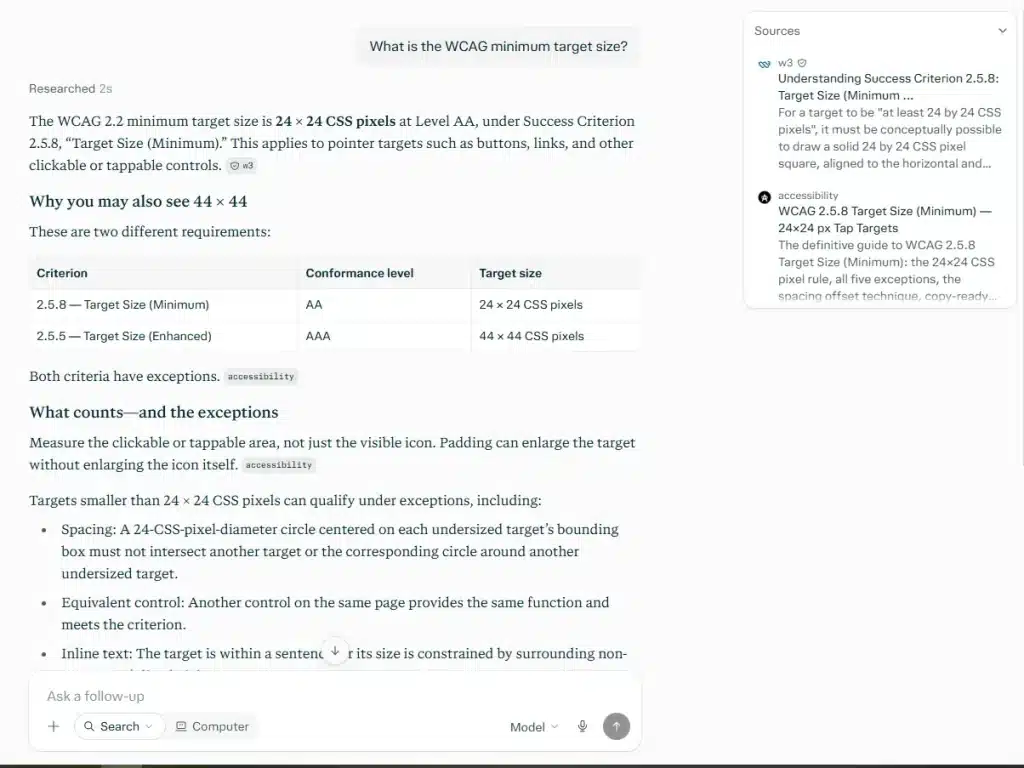
A reader checks a citation by reading the source name, opening it, and finding the sentence behind the claim. So name the source on the chip, open it in a side panel or new tab, and for internal documents show the last update date. An answer from an outdated policy looks just as confident as a current one.
Clarifying question
A bot that guesses at an ambiguous request produces a confident answer to the wrong question. Asking costs one turn. Guessing wrong costs several, plus trust.
Ask one question, and offer the likely answers as suggestion chips. “Which order do you mean?” with chips for the two most recent orders is faster than making the user type an order number. Keep to a few chips, give each a full text label, and leave the input open, because the right answer may not be on a chip.
Size every chip to WCAG 2.5.8, which sets pointer targets at “at least 24 by 24 CSS pixels,” with exceptions. Zendesk’s chips measured 38 pixels tall in the browser on 15 October 2026, which clears it.
Out of scope
When the request falls outside the bot’s topics, it should say so and point somewhere useful. HMRC’s tip “It needs to know what it doesn’t know” explains the cost of guessing. “Every time a chatbot doesn’t understand a question or offers up a wrong answer it reinforces negative expectations” (GOV.UK Design Notes). HMRC trains its bot to recognize common out-of-scope subjects and “redirect these users to appropriate help,” so they do not hit a dead end.
A good out-of-scope reply names the limit and gives a route. “I cannot help with billing. The billing team can, in Account then Billing.”
Low confidence
Some answers rest on weak or conflicting sources. Without a signal, a shaky answer looks exactly as solid as a good one.
Use hedged copy that tells the user what to check. “I am not certain. Please confirm this in your contract.” Add a visible “check this” marker, and offer feedback controls so users can flag bad answers. Claude showed separate thumbs up and thumbs down under each answer on 15 October 2026, and ChatGPT showed a feedback control in the same action row.
We advise against confidence percentages. A figure like “87% confident” looks precise, and few users can say what it measures.
Corrected by the user
When correcting the bot is hard, users start a new chat and lose the context. Correction is common. In Nielsen Norman Group’s diary study, “half of all conversations contained a followup action,” and the actions it names include revising an earlier prompt, regenerating a response and giving feedback (Liu, NN/g).
Two controls make correction cheap. Edit message lets users fix their question and rerun it. Regenerate asks for a new answer to the same question. On 15 October 2026, ChatGPT showed copy, share and edit on hover over the user’s message and a “Regenerate response” control on the answer. Claude showed retry, edit and copy beside the user’s message.
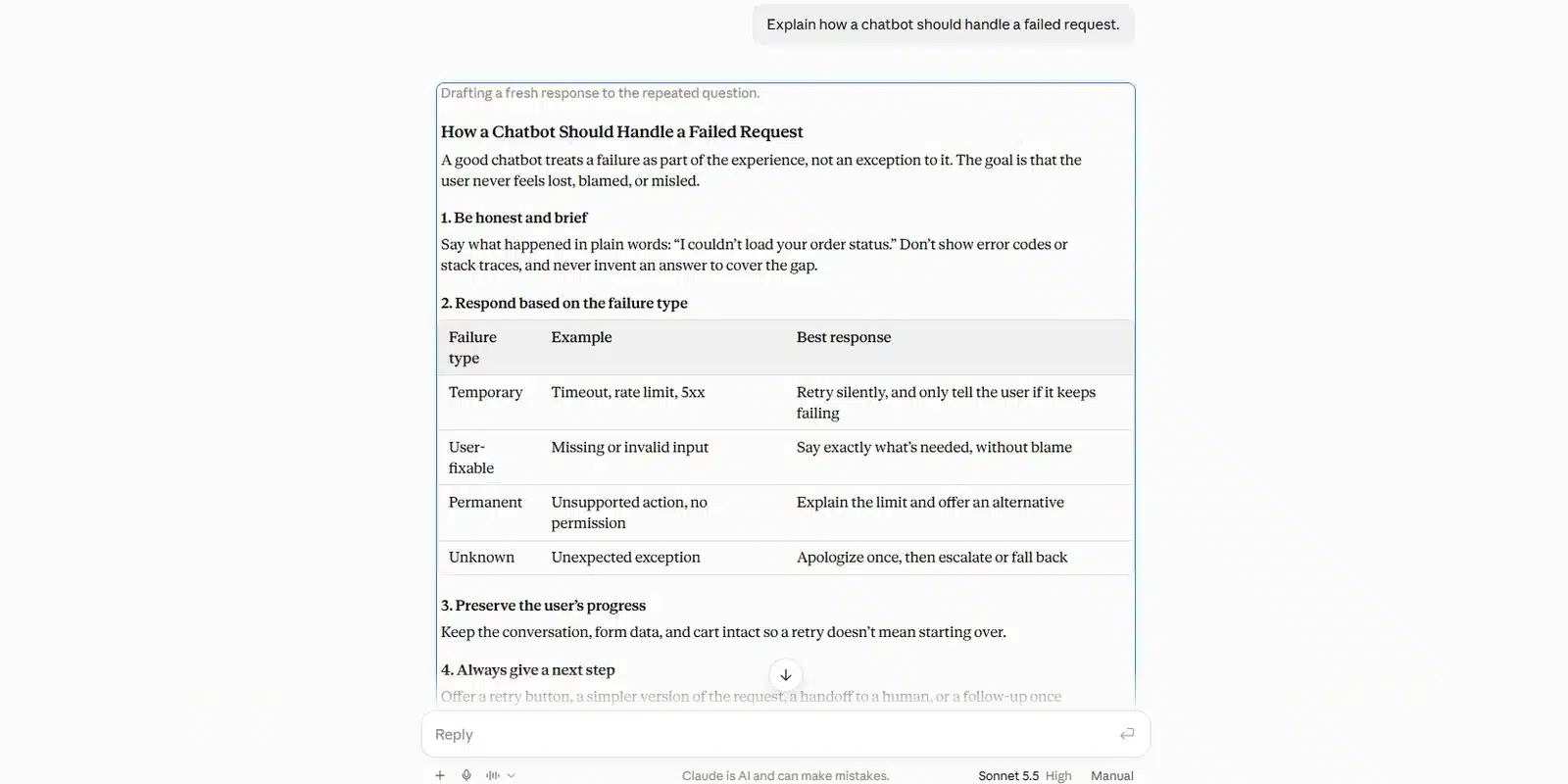
Replacing the old answer keeps the thread clean, and keeping both with a version switcher lets users compare. Either way, mark the newer answer.
Refusal
A refusal needs a reason and an alternative. A bare “I cannot help with that” reads as a malfunction, and a silent refusal, where the bot simply changes the subject, is worse.
Say what the bot will not do, say why in one clause, and offer the closest thing it can do. “I cannot share another customer’s details. I can help with your own account.” Keep the tone flat. Guardrails exist for good reasons, and the copy should state them without three apologies.
Errors
“Something went wrong” covers four different problems. Each needs its own copy, and one rule covers all four. The user’s typed message must never be lost.
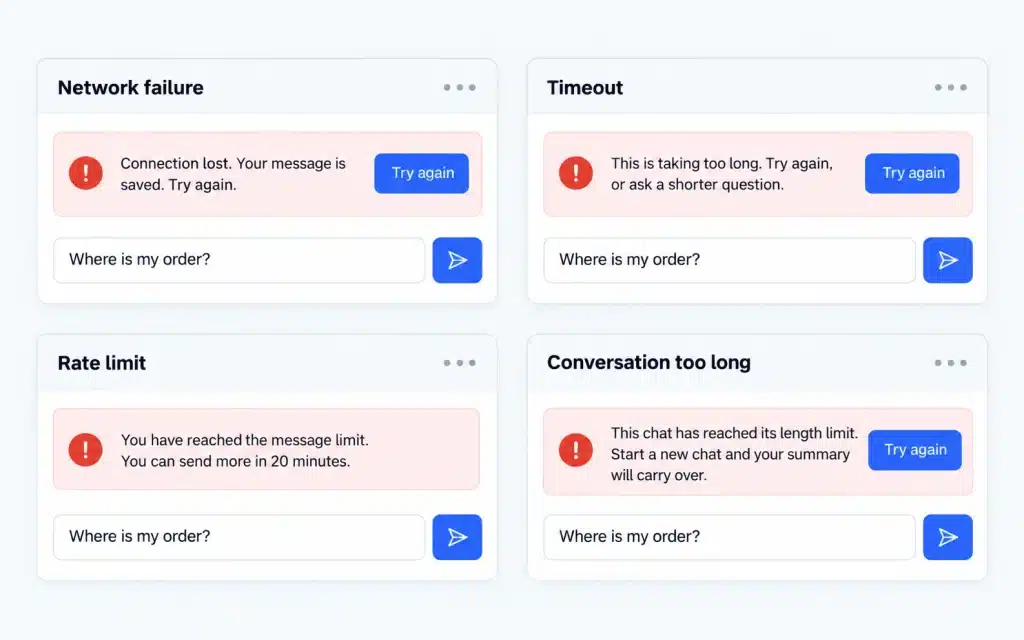
Network failure
The connection dropped before or during the answer. Keep the message in the composer or in the thread with a retry control, and keep any partial answer on screen, marked as incomplete. “Connection lost. Your message is saved. Try again.”
Timeout
The model or a tool took too long. Offer retry and a simpler path. “This is taking too long. Try again, or ask a shorter question.”
Rate limit
The user sent too many messages in a period. Say when they can continue, in plain time. “You have reached the message limit. You can send more in 20 minutes.”
Conversation too long
The conversation passed the model’s context limit. Offer a new chat that carries a summary forward. “This chat has reached its length limit. Start a new chat and your summary will carry over.”
Specific error copy is also the answer to the second fear, that customers leave when the bot fails. A user who knows what happened and what to do next has a reason to stay.
Handoff to a human
The handoff decides if a person with a real problem gets help or gets stuck. Design it from three sides.
Triggers. The user asks for a person. The bot fails twice on the same request. The topic is sensitive, such as a complaint, a payment dispute or a health question. Or the user may be vulnerable, which HMRC treats as a reason to send people “directly to a webchat adviser” (GOV.UK Design Notes). Mental health and crisis contexts belong in this last group, and their escalation path needs expert input beyond UI design.
What the user sees. Confirmation that the escalation happened, their place in the queue or the expected wait, the team’s hours, and an email fallback when no live agent is available.
What the agent receives. The transcript, a short summary, and what the bot already tried. Microsoft’s Bot Framework documentation describes a handoff event that can carry the context of the request and “a transcript of the conversation, so an agent can read the conversation that took place” (Microsoft Learn). The list of attempts stops the agent from suggesting the fix that already failed.
Ending and returning
Users leave without warning and come back days later. Without history they repeat everything, and without a delete control they cannot remove what they shared.
Show past conversations with a title and date. Zendesk’s widget, on 15 October 2026, listed a conversation as “Started Oct 15 at 1:20 AM” next to a “New conversation” button, which covers both resuming and starting fresh.
If the bot has memory across chats, show what it remembers and let users edit or turn it off. Give a clear delete control for single conversations and for all history, and say plainly what deleting removes. “Continue where you left off, or start a new chat.”
Accessibility for chat interfaces
A chat interface updates constantly without moving focus, which makes it hard for screen reader users. Of the eight guides we read, none gave ARIA guidance. Use this checklist.
- Mark the message list as role=”log”. W3C technique ARIA23 uses role=”log” so assistive technology is notified when new messages are appended, as a polite ARIA live region. It is a sufficient technique for WCAG 2.2 success criterion 4.1.3 Status Messages.
- Make keyboard navigation predictable. Enter sends and Shift+Enter adds a new line. Focus returns to the composer after sending, and every control, including chips, stop and feedback, is reachable by Tab.
- Set aria-busy while streaming, then announce the finished answer once. This is our recommendation. Word-by-word announcements of streaming text produce fragmented speech. While a reply streams, set aria-busy=”true” on that message, and set it to “false” when the answer is complete. MDN describes aria-busy as telling assistive technology “it should wait until the modifications or changes are complete before exposing the content to the user” (MDN, aria-busy). In the views we inspected on 15 October 2026, neither ChatGPT nor Claude used role=”log”, and both announced completion through a status region (“Response complete” and “Claude finished the response”). Test your version with NVDA and VoiceOver, because support for aria-busy and announcement timing vary by screen reader and browser.
- Turn off the typing animation under reduced motion. The prefers-reduced-motion media feature detects “if a user has enabled a setting on their device to minimize the amount of non-essential motion” (MDN). Show a static indicator instead.
- Check contrast in both bubble colors. WCAG 1.4.3 Contrast (Minimum) requires a contrast ratio of at least 4.5 to 1 for normal text and 3 to 1 for large text.
- Size targets to at least 24 by 24 CSS pixels. WCAG 2.5.8 Target Size (Minimum) applies to quick-reply chips, the stop button and feedback icons, with exceptions such as spacing.
- Reflow at small widths and enlarged text. WCAG 1.4.10 Reflow requires content to work without two-dimensional scrolling at a width equal to 320 CSS pixels, and 1.4.4 Resize Text requires text to resize up to 200 percent without loss of content or function. A chat widget fixed at 380 pixels wide can fail reflow on a zoomed screen.
- Announce errors and status, and never rely on color alone. Errors and queue updates are status messages under 4.1.3. WCAG 1.4.1 Use of Color says color must not be “the only visual means of conveying information,” so a red border needs words beside it.
The third fear was that accessibility slows the team down. Nearly all of these items are decisions made once in the component library. The message list, the chip, the button and the error card get built right once, and every screen inherits them.
The words are half the interface
In a chat interface, users see mostly text, so copy carries more of the design than any icon. Disclose the bot from the first line, as HMRC advises.
Users will still talk to the bot like a person. In The 4 Degrees of Anthropomorphism of Generative AI (UX Magazine, 21 December 2023), Sarah Gibbons, writing with Tarun Mugunthan and Jakob Nielsen, describes four degrees users show toward AI. Courtesy, reinforcement, roleplay and companionship. The article describes behavior and sets no design rule. For copy, it means a friendly tone is fine, because users bring politeness anyway. Pretending to be a person is a different thing. No invented staff names, no “let me check with my team” from a system that has no team.
Keep answers short on mobile, where a long answer pushes the composer off screen, and put detail behind an expand control. Write for the screen and the question. No fixed word count works for every answer.
Three before-and-after pairs show the difference. All three are examples we wrote for a fictional support bot.
Example 1, an error message.
Before. “Oops! Something went wrong. Please try again later.”
After. “Connection lost. Your message is saved. Try again.”
Example 2, a refusal.
Before. “I’m sorry, I can’t help with that.”
After. “I cannot share another customer’s details. I can help with your own account.”
Example 3, a handoff message.
Before. “Please hold.”
After. “I am connecting you to the support team. You are number 3 in the queue. The team replies within a few minutes between 9 am and 6 pm. Outside those hours, email support@example.com.”
Chatbot UI examples worth studying, by state
These six products each handle at least one state well. We opened each one on 15 October 2026 and describe only what we saw that day.
| Product | The state it handles well | What to copy from it |
| Claude | Thinking | A one-line status that describes the work instead of a bare indicator |
| ChatGPT | Streaming | Stop in place of send, and a scroll position that stays put when the user scrolls up |
| Perplexity | Answer with sources | A source chip at the end of each paragraph, plus a full source list and count |
| Intercom Fin | First screen and handoff | “The team can also help” in the header before the first message |
| Zendesk AI agent | First screen and clarifying question | An “(AI agent)” sender label and five labeled quick-reply chips sized well above 24 pixels |
| Duck.ai | Frame and prompt controls | Text labels on “Tools” and “Fast,” and a privacy statement under the composer |
Gaps showed too. Duck.ai left its paperclip and microphone unlabeled, and in the views we inspected, neither ChatGPT nor Claude used role=”log”. GOV.UK Chat, which launched inside the GOV.UK app on 14 May 2026 according to the Government Digital Service, runs only inside that app, so we could not check it from a browser.
Testing a chatbot UI before launch
Test a chatbot UI by forcing every state on purpose with a failure script, then reading real transcripts after launch. Happy-path testing tells you the bubbles look right. It tells you nothing about the states in this guide, because test users rarely trigger them by accident.
Write a failure script with one test per row of the state table.
- Open the chat cold and check the first screen.
- Send a question that needs a long answer and time the first indicator.
- Scroll up mid-stream and press stop.
- Ask something the documents answer, and open a source.
- Ask something ambiguous.
- Ask something out of scope.
- Ask something the sources barely cover.
- Edit a message and regenerate an answer.
- Ask for something the bot must refuse.
- Drop the network mid-answer, force a timeout, hit the rate limit, and fill the context.
- Ask for a person, inside and outside team hours.
- Leave, return, and delete the history.
Run the script on every build, and once with a screen reader. The broader method, from task-based tests to release checks, is in our SaaS UX design best practices.
After launch, read real transcripts. HMRC’s last tip is “A chatbot’s education is never done,” and the team writes “You need to keep on teaching it” (GOV.UK Design Notes). Our recommendation is to read them every week for the first months, then less often once the fixes slow down.
Track five metrics.
- Task completion. Did the user get what they came for?
- Handoff rate. How often does the conversation end with a human?
- Drop-off after an error. Do users leave after an error state?
- Thumbs-down rate. Which answers do users flag?
- Repeat questions. How often do users ask the same thing twice?
Watch how each one moves over time and after each change. Benchmarks from other products tell you little, because tasks and users differ.
What a chatbot UI design project should hand over
A chatbot UI design project should leave the build team with six things.
- State inventory. Every state from the table above, adapted to the product, with its trigger.
- Component specs for every state. The launcher, bubbles, composer, chips, source chips, status lines and error cards, each shown in every state it appears in.
- Copy deck. Every system message, error line, refusal and handoff message, written and approved.
- Accessibility notes. Roles, focus order, keyboard behavior, announcement rules and reduced-motion behavior.
- Failure test script. The script from the testing section, ready to run.
- Handoff rules. The triggers, the queue copy, the out-of-hours fallback and the summary format the agent receives.
That list also answers the last fear, that design agencies do not understand AI products. A state inventory and a handoff spec are the fairest test of whether a studio understands AI products.
Scope, said plainly. Pixelean designs the interface. We do not build the model or the backend. If you want the state inventory, copy deck and specs done for your product, our SaaS application design team does this work. If you are still comparing studios, our list of UX design agencies for AI products sets out the options.
Frequently asked questions
What is chatbot UI design?
Chatbot UI design is the design of everything a user sees and touches in a chat interface. It covers the frame (launcher, window, message bubbles and composer), the states the conversation goes through (thinking, streaming, errors, refusals and handoff to a human), and the words the bot uses in each of those states.
How is chatbot UI different from chatbot UX?
Chatbot UI is the visible interface, meaning the components and states on screen. Chatbot UX is how well the full conversation gets the user to their goal. UX depends on the UI, but also on the model’s answers, the content behind them, and how well the handoff to people works.
Should a chatbot say it is a bot?
Yes. HMRC’s design team advises making clear from the start that users are talking to a computer, and saying which topics it can help with (GOV.UK Design Notes). Say it on the first screen and in the bot’s name or label. A friendly tone is fine, but the bot should never pretend to be a person.
How many states does a chatbot UI need?
A complete chatbot UI designs 12 states. They are first screen, thinking, streaming, answer with sources, clarifying question, out of scope, low confidence, corrected by the user, refusal, errors, handoff to a human, and ending and returning. A simple FAQ bot can merge some of them, but few products can skip errors, refusal or handoff.
When should a chatbot hand over to a human?
A chatbot should hand over when the user asks for a person, when it fails twice on the same request, when the topic is sensitive, and when the user may be vulnerable. The user should see the wait and the team’s hours, and the agent should receive the transcript, a summary and what the bot already tried.
How do you make a chatbot accessible?
Mark the message list as role=”log”, keep keyboard behavior predictable, and return focus to the input after sending. Mark a streaming reply aria-busy and announce the finished answer instead of every streamed word, turn off typing animation under prefers-reduced-motion, meet WCAG contrast and 24 by 24 pixel target sizes, support reflow, and never signal errors by color alone.
What tools do designers use for chatbot UI?
Designers typically use a design tool such as Figma for the frame and every state, a prototype that can simulate delays and streaming, and a shared document for the copy deck. For testing, they use screen readers such as NVDA and VoiceOver. The state inventory itself works well as a simple table that the whole team can edit.